Team Management
Manage your organization's team members, invite new users, and assign roles.
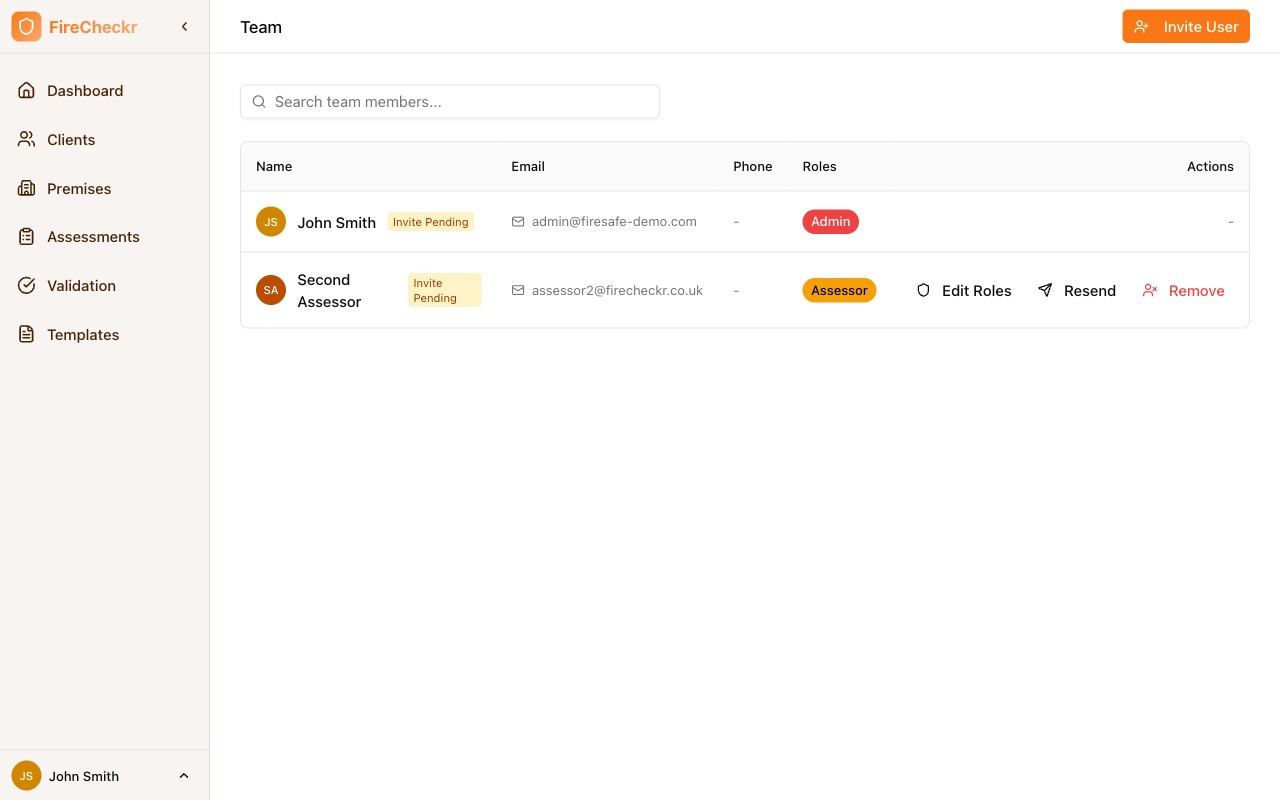
Viewing Team Members
Navigate to Team in the sidebar to see all users in your organization. The list shows:
| Column | Description |
|---|---|
| Name | User's full name and avatar |
| Contact email address | |
| Phone | Phone number (if provided) |
| Roles | Assigned role badges |
| Actions | Available actions for each user |
Use the search bar to quickly find team members by name or email.
User Status
Users can have different statuses:
- Active — User has accepted their invitation and can log in
- Invite Pending — User has been invited but hasn't accepted yet
Inviting New Users
Admin Only
Only users with the Admin role can invite new team members.
- Click Invite User in the top right
- Enter the user's email address
- Select their role(s)
- Click Send Invitation
The user will receive an email with instructions to set up their account.
Managing Team Members
Edit Roles
- Click Edit Roles next to the user
- Select or deselect roles as needed
- Click Save
Resend Invitation
If a user hasn't received their invitation:
- Click Resend next to the pending user
- A new invitation email is sent
Remove User
- Click Remove next to the user
- Confirm the removal
warning
Removed users immediately lose access. Their completed work (assessments, findings) is preserved.
Role Assignments
Users can have multiple roles. See Roles & Permissions for details on what each role can do.