Dashboard
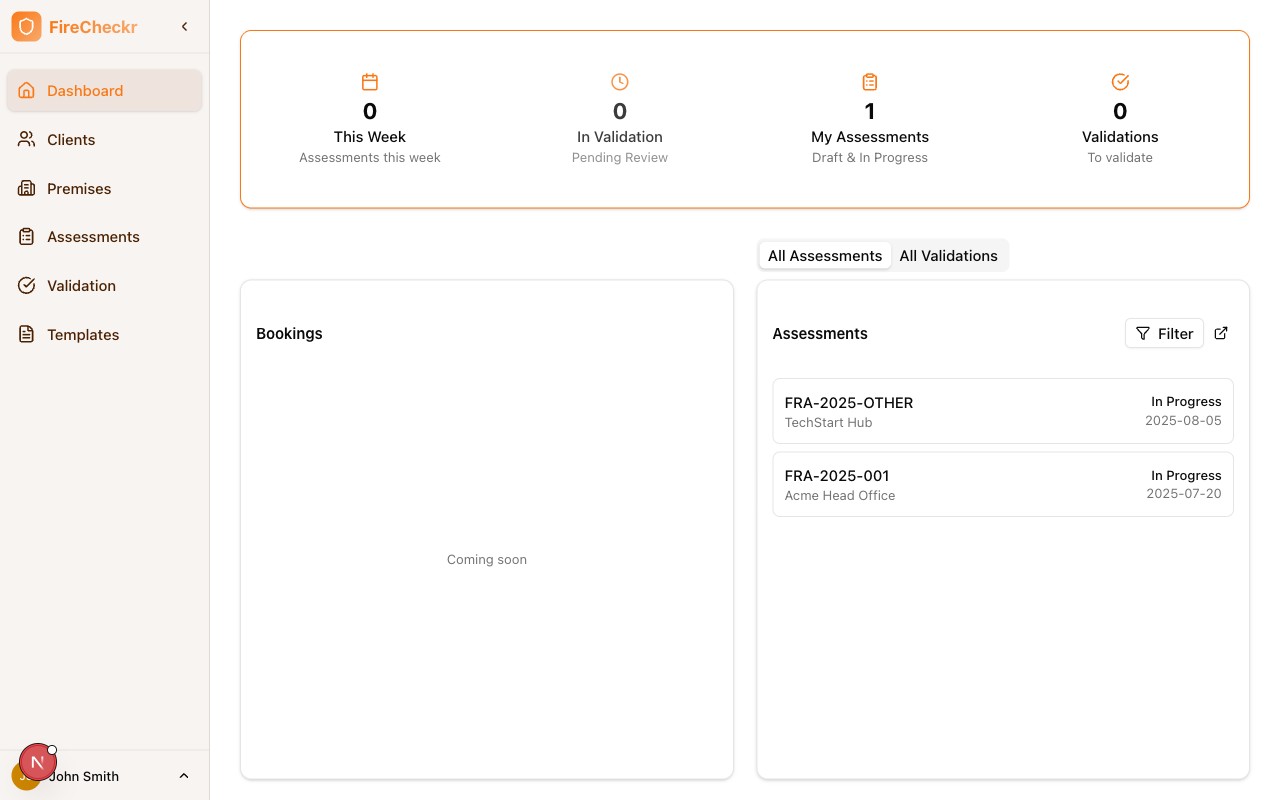
The Dashboard is your home screen in FireCheckr, providing a quick overview of your assessments and key metrics.
Key Performance Indicators
At the top of the dashboard, you'll see four key metrics:
| Metric | Description |
|---|---|
| This Week | Assessments scheduled for the current week |
| In Validation | Assessments awaiting validation |
| My Assessments | Your draft and in-progress assessments |
| Validations | Assessments you need to validate |
Quick Navigation
Click on any KPI card to jump directly to the relevant assessment list with filters pre-applied.
Assessments Panel
The right side shows your assessments in two tabs:
All Assessments
View all assessments across your organization with:
- Assessment reference number
- Premises name
- Current status
- Scheduled/job date
Use the Filter button to narrow down by status, date range, or assigned assessor.
All Validations
Switch to this tab to see assessments pending validation.
Bookings
The left panel shows upcoming booking information (coming soon).
Role-Based Views
The dashboard adapts based on your role:
- Assessors see their assigned assessments
- Validators see the validation queue
- Admins see organization-wide metrics