Q&A Workspace
The Q&A Workspace is where you review and finalize all answers for your fire risk assessment report. AI generates draft answers based on your findings, and you have full control to review, edit, and confirm each one.
Accessing the Workspace
From an assessment, click Edit Report to enter the workspace.
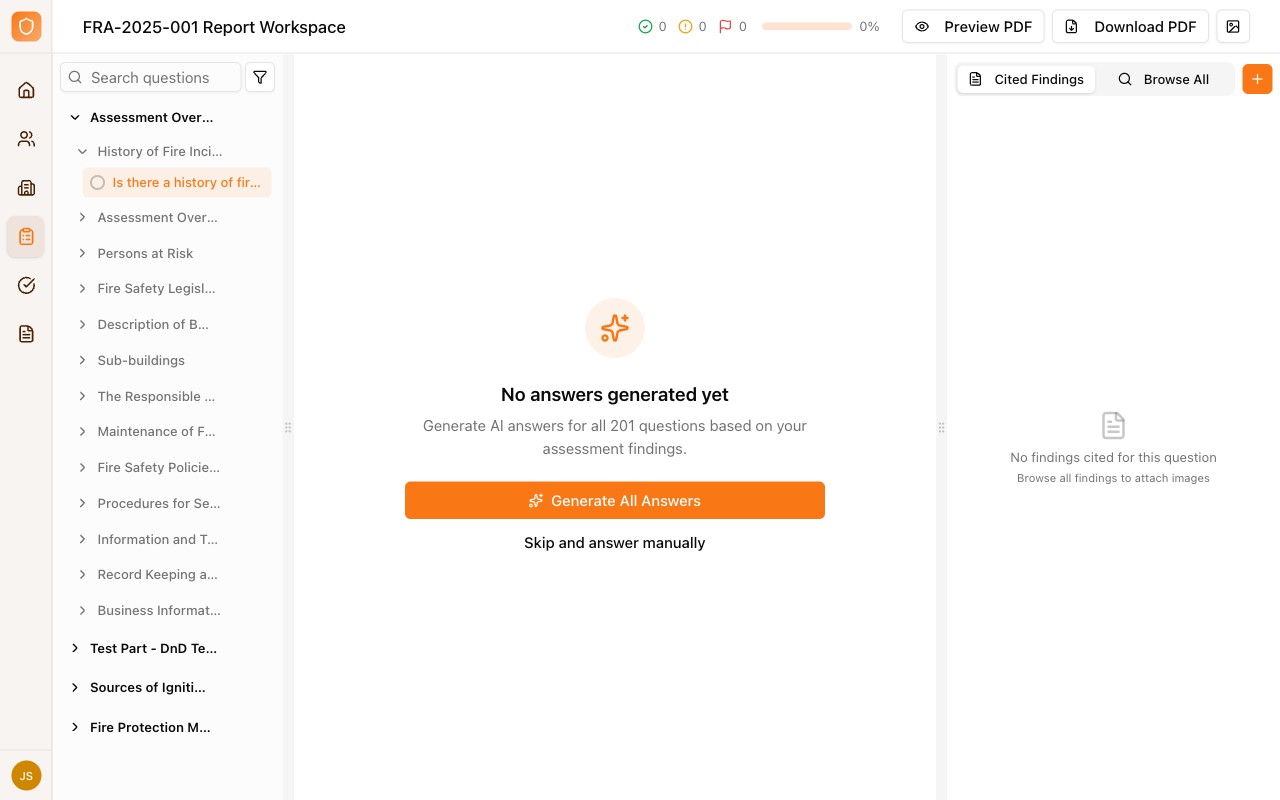
Workspace Layout
The workspace has three main areas:
Question Sidebar (Left)
Navigate between sections and questions:
- Sections expand to show subsections and questions
- Progress counters show completion status (e.g., "0/65")
- Search to find specific questions
- Filter to show only unanswered questions
Answer Panel (Center)
The main working area where you:
- View the current question
- See and edit the answer
- Generate AI answers
- Mark answers as confirmed
Findings Panel (Right)
Shows findings relevant to the current question:
- Cited Findings — Findings linked to this answer
- Browse All — Search all findings to cite
Progress Indicators
At the top of the workspace:
| Indicator | Description |
|---|---|
| Checkmark count | Confirmed answers |
| Clock count | Draft answers pending review |
| Flag count | Flagged for attention |
| Progress bar | Overall completion percentage |
Generating Answers
First Time Setup
When entering a workspace with no answers:
- Click Generate All Answers to create AI drafts for all questions
- Or click Skip and answer manually to write answers yourself
Generate Single Answer
For individual questions, click the Generate button to create an AI answer based on your findings.
Generation uses your recorded findings to create contextual, relevant answers. More detailed findings lead to better generated answers.
Answering Questions
For each question:
- Review the AI-generated answer — Check if it accurately reflects your findings
- Check cited findings — See which findings informed this answer
- Edit if needed — Modify the answer text
- Confirm — Mark the answer as reviewed
Answer Types
Depending on the question:
- Text answers — Free-form response
- Multiple choice — Select from predefined options
- Yes/No/N/A — Simple selection with optional notes
Quick Answers
For common responses, use quick answer buttons:
- Yes — With standard positive response
- No — With standard negative response
- N/A — Not applicable to this premises
Working with Findings
Citing Findings
Link findings to answers as evidence:
- Select a finding from the Cited Findings panel
- The finding is attached to the current answer
- Cited findings appear in the final report
Browsing All Findings
Click Browse All to see all findings and:
- Search by keyword
- Filter by category or severity
- Attach images to the current answer
Tips for Efficient Review
- Use keyboard navigation to move between questions
- Review by section to maintain context
- Confirm straightforward answers quickly
- Focus editing time on complex questions
- Use the progress indicators to track completion
Exporting the Report
Once all questions are confirmed:
- Click Preview PDF to see a preview
- Click Download PDF to generate the final report
- Optionally select a custom cover image
See Exporting Reports for more details.